iSpyConnect's community-maintained database lists 1 Pantech camera model with 1 crowd-sourced connection URL. Pantech cameras connect using HTTP, typically on port 80. Connection data is crowd-sourced from the community and updated daily.
Pantech connection URLs
Tip: Click a model to generate a video connection URL for your Pantech camera
| Models | Type | Protocol | URL |
|---|---|---|---|
| Flex | MJPEG | HTTP | /videofeed |
* iSpyConnect has no affiliation, connection, or association with Pantech's products. The connection details provided here are crowdsourced from the community and may be incomplete, inaccurate or out of date. We provide no guarantee or warranty that you will be able to connect to your cameras using these URLs.
How to connect Pantech cameras to Agent DVR
- Download and install Agent DVR - free for local use on Windows, macOS, Linux, Docker and Raspberry Pi.
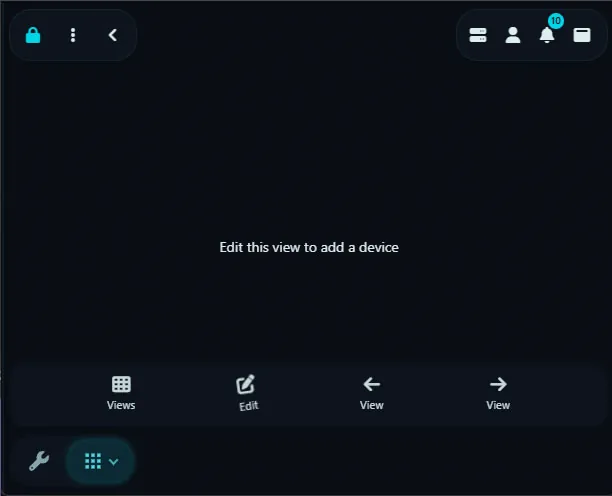
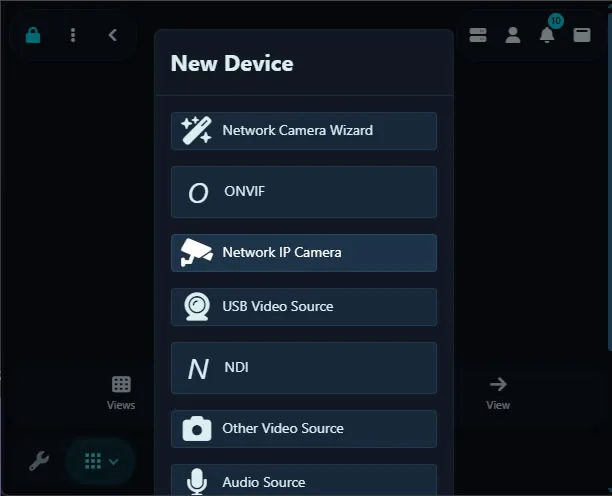
- Open Agent DVR in your browser and click the + (Add) button, then choose "IP Camera Wizard".
- Select Pantech from the manufacturer list.
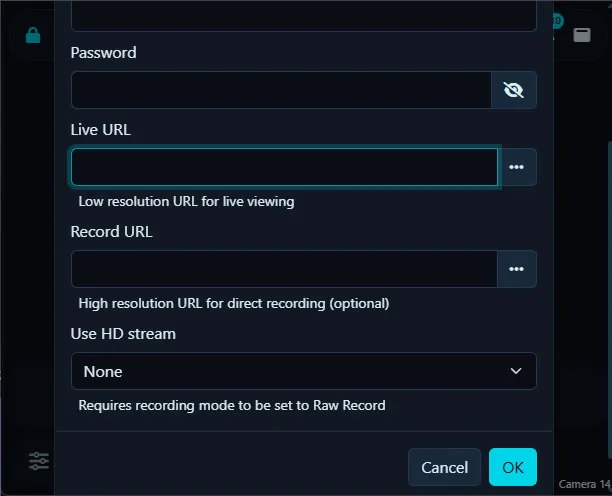
- Enter your camera's IP address, username and password. These stay on your machine and are never sent to iSpyConnect.
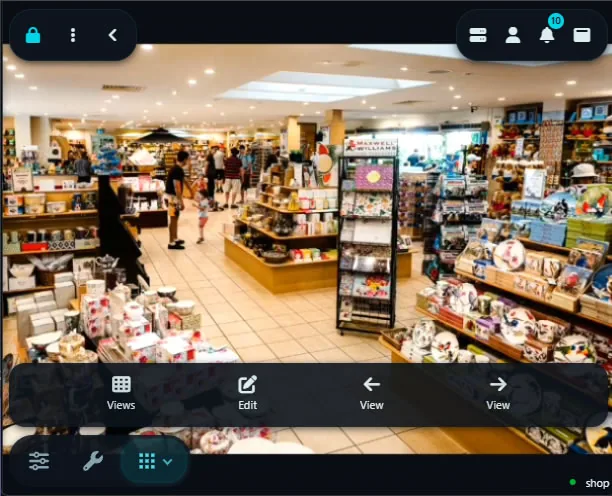
- Pick the HTTP connection URL (default port 80) and save. Agent DVR begins live streaming, motion detection and recording.
Pantech Camera FAQ
How many Pantech camera models does iSpyConnect support?
iSpyConnect's crowd-sourced database lists 1 Pantech model with 1 connection URL, updated daily by the community.
What is the HTTP URL for Pantech cameras?
Pantech cameras typically connect over HTTP on port 80. For example, the Pantech Flex connects at http://[camera-ip]:80/videofeed - replace [camera-ip] with your camera's address and add your username and password, or click any model in the table above to generate the exact URL.
Do Pantech cameras support ONVIF?
It varies by model. If your Pantech camera supports ONVIF, Agent DVR can auto-discover it; otherwise use a direct HTTP URL from the table above.
How do I connect Pantech cameras to Agent DVR?
Install Agent DVR (free), click the + button, choose the IP Camera Wizard, select Pantech, enter your camera's IP address, username and password, then pick a connection URL. Agent DVR starts live streaming, motion detection and recording immediately.
Other makes starting with "P"
* iSpyConnect has no affiliation, connection, or association with Pantech's products. The connection details provided here are crowdsourced from the community and may be incomplete, inaccurate or out of date. We provide no guarantee or warranty that you will be able to connect to your cameras using these URLs.