iSpyConnect's community-maintained database lists 2 Galaxy Phone camera models with 1 crowd-sourced connection URL. Galaxy Phone cameras connect using HTTP, typically on port 80. Connection data is crowd-sourced from the community and updated daily.
Galaxy Phone connection URLs
Tip: Click a model to generate a video connection URL for your Galaxy Phone camera
* iSpyConnect has no affiliation, connection, or association with Galaxy Phone's products. The connection details provided here are crowdsourced from the community and may be incomplete, inaccurate or out of date. We provide no guarantee or warranty that you will be able to connect to your cameras using these URLs.
How to connect Galaxy Phone cameras to Agent DVR
- Download and install Agent DVR - free for local use on Windows, macOS, Linux, Docker and Raspberry Pi.
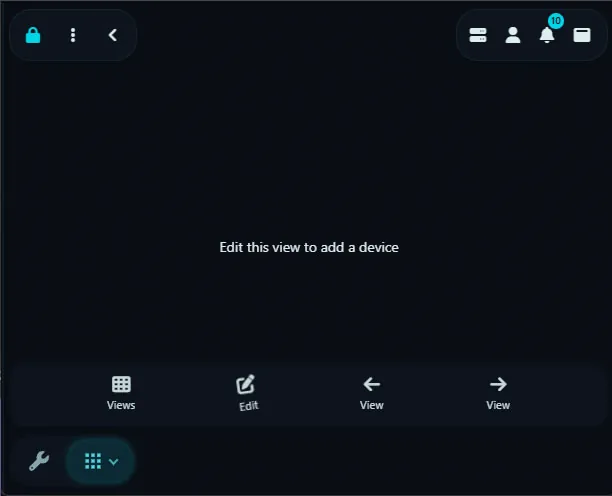
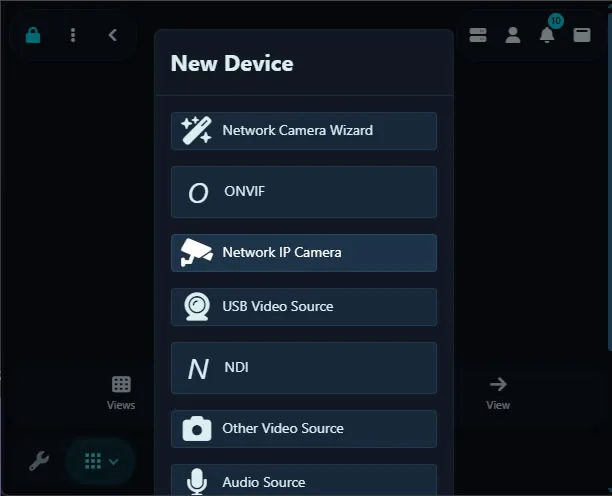
- Open Agent DVR in your browser and click the + (Add) button, then choose "IP Camera Wizard".
- Select Galaxy Phone from the manufacturer list.
- Enter your camera's IP address, username and password. These stay on your machine and are never sent to iSpyConnect.
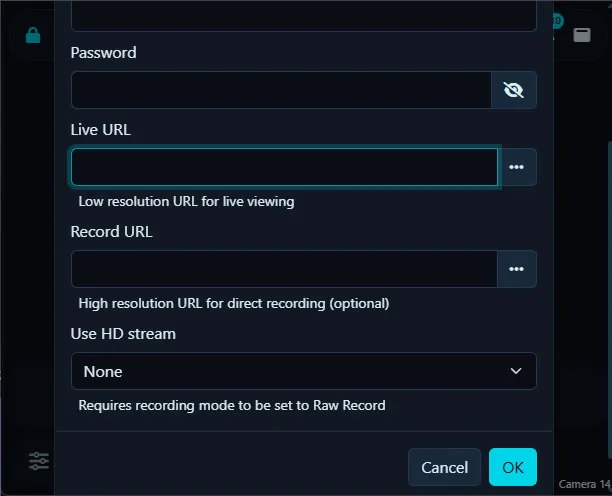
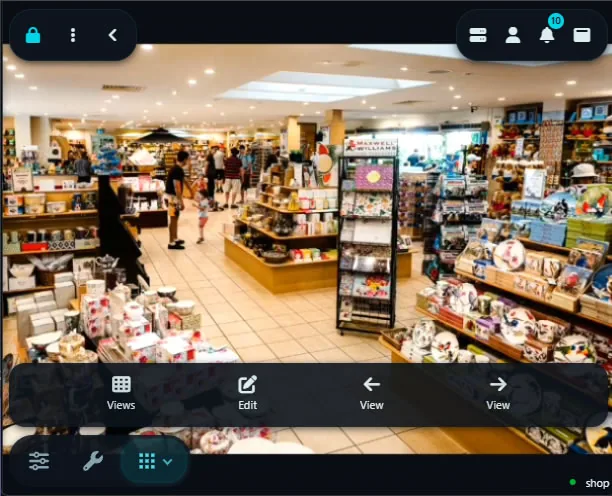
- Pick the HTTP connection URL (default port 80) and save. Agent DVR begins live streaming, motion detection and recording.
Galaxy Phone Camera FAQ
How many Galaxy Phone camera models does iSpyConnect support?
iSpyConnect's crowd-sourced database lists 2 Galaxy Phone models with 1 connection URL, updated daily by the community.
What is the HTTP URL for Galaxy Phone cameras?
Galaxy Phone cameras typically connect over HTTP on port 80. For example, the Galaxy Phone 700 connects at http://[camera-ip]:80/videofeed - replace [camera-ip] with your camera's address and add your username and password, or click any model in the table above to generate the exact URL.
Do Galaxy Phone cameras support ONVIF?
It varies by model. If your Galaxy Phone camera supports ONVIF, Agent DVR can auto-discover it; otherwise use a direct HTTP URL from the table above.
How do I connect Galaxy Phone cameras to Agent DVR?
Install Agent DVR (free), click the + button, choose the IP Camera Wizard, select Galaxy Phone, enter your camera's IP address, username and password, then pick a connection URL. Agent DVR starts live streaming, motion detection and recording immediately.
Other makes starting with "G"
* iSpyConnect has no affiliation, connection, or association with Galaxy Phone's products. The connection details provided here are crowdsourced from the community and may be incomplete, inaccurate or out of date. We provide no guarantee or warranty that you will be able to connect to your cameras using these URLs.