About
Agent DVR can let you know the moment something happens. It supports email alerts via SMTP, Push Notifications (via web browser, iOS and Android apps), Telegram, IFTTT and third party push (like Pushsafer). You can also send alerts to Discord, Slack, Mattermost, Google Chat, Microsoft Teams, ntfy and similar services using Webhooks.
Email with SMTP
We offer our own mail servers for sending out notifications as part of an Agent DVR subscription. However, you also have the option to use your own SMTP server without needing a subscription. For more information, see SMTP Settings.

To configure SMTP in Agent DVR, click on the server icon and navigate to Settings. Then, select the SMTP tab. Input your SMTP server details. After clicking OK, Agent DVR (v3.2.1.0+) will send a test email to your "From Address" using these settings. Make sure to enable 'Use SMTP' at the top of the settings page.
SMTP Troubleshooting
SMTP (email) notifications in Agent DVR are tied to specific device actions. To set up email notifications, edit your device and go to Actions. Select an event, like an Alert, and choose the "Send Email" action. Input your email address and confirm by clicking OK.
If you're not receiving email alerts, ensure the following:
- Agent DVR is armed (indicated by a closed padlock icon in the top left).
- Alerts are active (check the top checkbox on the Alerts tab in device settings).
- Messaging is enabled (Messaging checkbox on the Alerts tab).
- You have an active iSpyconnect.com subscription or SMTP configured in Server Settings.
- Your setup triggers alerts (e.g., Detector is configured and active).
If emails aren't arriving, verify your server settings and check the local logs at /logs.html for any failure messages. Also, check your junk mail in case the emails are flagged as spam.
For Gmail users, Google no longer supports signing in with your normal account password from external applications. Enable 2-Step Verification on your Google account and create an App Password, then use that as the SMTP password. Other providers may block application access, requiring you to use our services for email notifications.
Push Notifications
Receive push notifications through the Agent DVR mobile apps available for iOS, Android, and Desktop (subscribers only).
Getting Started
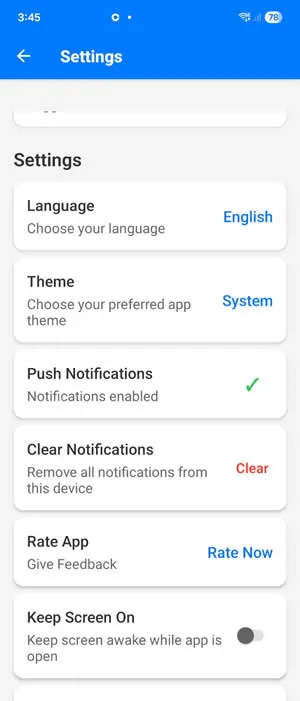
Install the Agent DVR Remote app from your device's app store. Open the app, tap the settings button (gear icon) on the server list page, and confirm that Push Notifications is enabled.
Agent DVR sends push notifications when an alert fires. For this to work:
- Alerts must be enabled on the device.
- The system must be armed (green padlock in the top-left corner of the Agent DVR UI).
You can also trigger push notifications from custom scenarios using Actions.
Desktop users can enable push notifications through Chrome.
What's Included
Push notifications cover all Alert and Manual Alert events from your devices, with an image grab when available. To opt out for a specific device, uncheck Push Alerts on the Alerts tab in that device's settings.
Rich Notifications
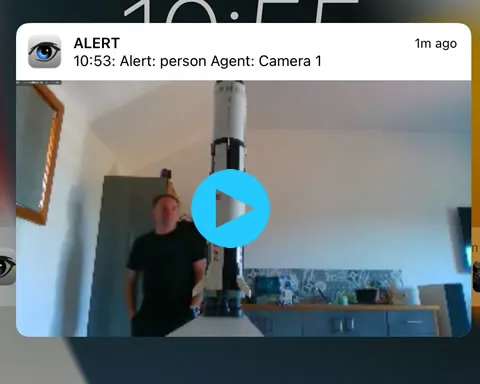
Android and iOS notifications can include a camera snapshot. iOS also supports short video clips of the triggering event: enable this by checking Push Video on the Alerts tab.
Browser Notifications
Agent DVR can notify you with browser alerts when an alert or recording is triggered. Under Account - Notification Settings see the options to enable or disable browser notifications for New Recordings or Alerts. An alarm will then sound for any alert generated.
Push Safer
You can use pushsafer to send push notifications with images via actions instead - edit a device, select actions and add an action like:
- If: Alert
- Then: Call URL
- URL: https://www.pushsafer.com/api
- Upload Image: 0 (image will be sent in the {BASE64IMAGE} tag below)
- Method: POST
- Body: t=Agent&m=Alert&s=11&d=a&is=1&v=3&k=PRIVATE KEY&p=data:image/jpeg;base64,{BASE64IMAGE}
(Replace PRIVATE KEY with your private key from pushsafer)