About
Profiles let you switch your whole system between different configurations, such as Home, Away and Night, with a single click. Each profile in Agent DVR stores key settings about your devices:
- Enabled Status
- Alerts Enabled
- Record Mode (Alert/ Detect/ Manual)
- Recording Status (manual recording on/ off)
- Photos Enabled
- FTP Enabled
- Timelapse Enabled
- Facial Recognition Enabled
- Object Recognition Enabled
- LPR Enabled
- Motion Detector Enabled
- Cloud Upload Recordings Enabled
- Cloud Upload Photos Enabled
- Plugin Enabled
- Which Actions are enabled/ disabled (v4.1.0.0+)
- Motion/ sound detector type, gain, and sensitivity settings
There are four profiles: Home, Away, Night, and Disabled. You can rename these profiles, but remember, some integrations need the original names to function properly.
To set up a profile, configure your device settings the way you want them, then go to - Profiles and click the Save icon next to the profile you want to update. Do the same for other profiles as needed.
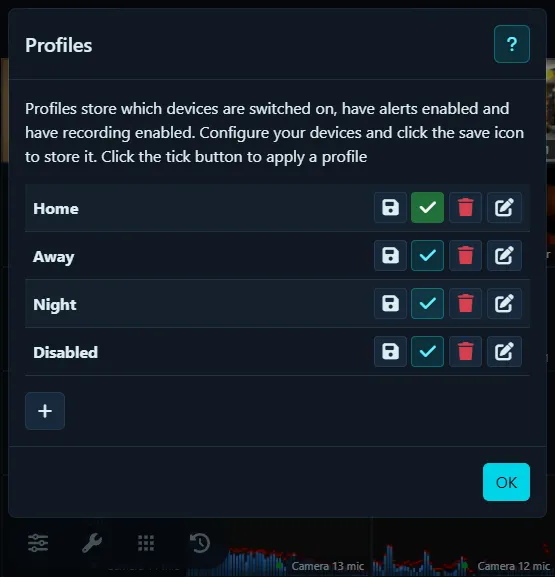
Click the button to apply a profile. It'll highlight to show the most recently used profile.
Click the button to save the current device settings to the profile.
Click the button to rename the profile.
Tip: You can also apply these profiles via the API (using setProfile) or through integrations. Plus, you can set a default profile in Settings - Security for when you arm or disarm Agent.