Occupancy Counters and Speed Measurement
Click Counters on the Analytics page to set up occupancy counters and speed measurements.
Counters (occupancy)
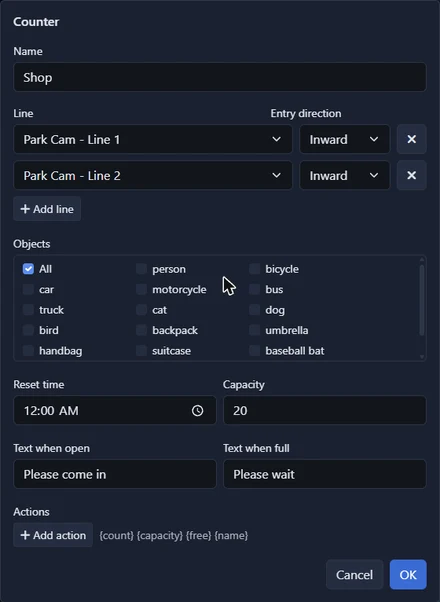
A counter keeps a running count of how many people or vehicles are inside somewhere: a shop, a room, a car park. It goes up when something crosses one of its lines in the entry direction and down when something crosses the other way. The lines can be on different cameras, so a building with one entrance and several exits is still one counter.
- Name: The counter's name in reports and alerts.
- Line and Entry direction: A line that counts for this counter, and which way across it is "in". Use Add line for each further entrance or exit.
- Objects: Which kinds of object to count. All counts everything the cameras are set to detect.
- Reset time: The time of day the count goes back to zero. Small errors add up over a day, so reset when the place is empty, usually overnight.
- Capacity: How many fit. Optional. With a capacity, reports show the free spaces and when the place is full.
- Text when open / Text when full: A message shown by the Occupancy report below and at capacity, for example "Please come in" and "Please wait".
- Actions: Call a URL when the count is at or above, or at or below, a number, for example to switch a "Full" sign or open a barrier. The URL can include
{count},{capacity},{free}and{name}. To call Agent DVR's own API, use an address on this computer such ashttp://localhost:8090/command/...; no login details are needed.
The count never goes below zero. If it has drifted, use Set count in the counter's settings to correct it. Add an Occupancy report to a dashboard to show the count, and use its full screen button for a screen at the door.
Speed measurements
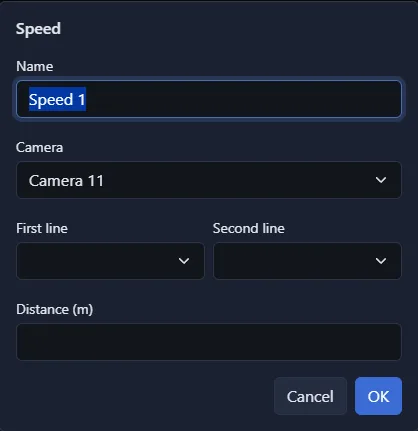
A speed measurement times objects between two lines on the same camera that are a known distance apart on the ground.
- Camera, First line and Second line: The two lines an object crosses. Draw them across the road or path, parallel to each other, as far apart as the view allows.
- Distance (m): The distance between the two lines on the ground, in metres. Measure it: the speed is only as accurate as this number.
Choose km/h or mph at the top of the Speed measurements list. A measured speed is written on the object's label in the overlay and feeds the Speed report and speed alerts. For vehicles, set the camera's Detection rate to 10. Speeds are estimates and are not suitable for enforcement.
Queue, Loitering and Occupancy Alerts
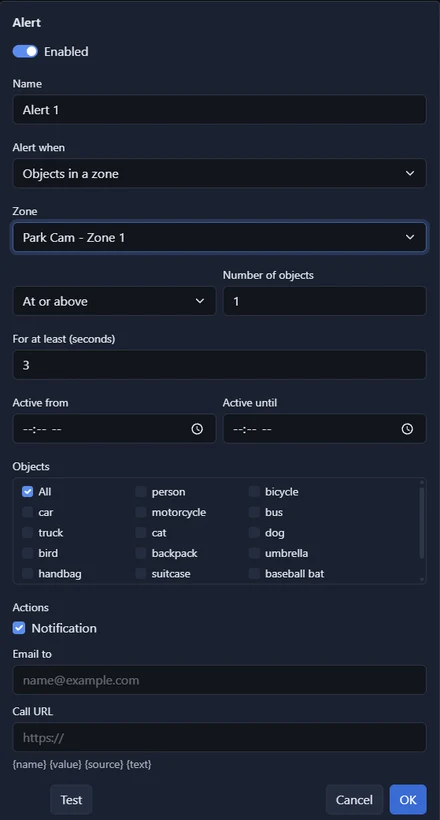
Analytics has its own alerts, separate from camera alerts and actions. Click Alerts on the Analytics page to see your alerts and, below them, the Recent alerts log (the last 200). Click Add alert to make one.
Alert when sets what the alert watches:
- Objects in a zone: The number of objects in a zone is at or above (or at or below) a number. For example, anyone in a restricted area, or nobody at a staffed desk.
- Queue in a zone: The number waiting in a zone reaches a number. For example, more than five people at the tills.
- Time in a zone: One object has stayed in a zone for longer than a number of seconds. Use this for loitering.
- Line crossed: Something crosses a line Inward, Outward or Either way.
- Following closely: Something crosses a line within a second of the one in front (tailgating).
- Occupancy: A counter is at or above (or at or below) a number.
- Speed: A speed measurement records a speed at or above (or at or below) a number.
The other settings:
- For at least (seconds): For the zone, queue and occupancy alerts, how long the number must hold before the alert is raised, so one person walking through does not set it off. These alerts are raised once, and not again until the number has gone back.
- Not more than once every (seconds): For the others, which can happen again and again, the shortest time between two alerts.
- Active from / Active until: The hours of the day the alert is in force. Leave both empty for all day. If "until" is the earlier time, the alert runs overnight.
- Objects: Which kinds of object the alert is about.
- Notification: Shows the alert in the web interface of signed-in administrators.
- Email to: Sends an email. Separate several addresses with commas. Uses your own mail server if one is set in Server Settings, otherwise your Agent DVR account's email alerts.
- Call URL: Calls a web address. It can include
{name}(the alert),{value}(the number that set it off),{source}(the camera and line, zone or counter) and{text}(the whole message).
The Test button raises the alert as it stands in the editor, without saving, so you can check a notification, email or URL before relying on it.