Android TV and Google TV
The Agent DVR app for Android also runs on televisions and streaming boxes that use Android TV or Google TV, such as Sony Bravia TVs, Chromecast with Google TV and Nvidia Shield. It puts your live cameras on the big screen and is controlled entirely with the TV remote.
To install it, open Google Play on the TV and search for Agent DVR, or install the Agent DVR Remote Android App to your TV from the Google Play website.
The TV app is built for watching. It shows the live view only: use the web portal or the mobile apps for the time line, recordings, alerts and settings.
- The TV stays awake while cameras are showing, so its own screensaver does not cover them.
- Each view is shown as an automatic grid of its cameras. See Using Views to set up views.
- Push notifications are not delivered to TVs.
On Amazon Fire TV the same app comes from Amazon's store, see Amazon Fire TV.
Amazon Fire TV
Agent DVR is available for Amazon Fire TV. It puts your live cameras on the big screen and is controlled entirely with the Fire TV remote.
To install it, search for Agent DVR on your Fire TV and select the app from the results, or send it to your Fire TV from the Amazon Appstore .
The TV app is built for watching. It shows the live view only: use the web portal or the mobile apps for the time line, recordings, alerts and settings.
- The app connects through your Agent DVR account, so the server needs remote access (a subscription).
- The TV stays awake while cameras are showing, so its own screensaver does not cover them.
- Each view is shown as an automatic grid of its cameras. See Using Views to set up views.
- Push notifications are not delivered to TVs.
The app runs on Fire TV sticks, cubes and televisions that use Fire OS. It is not available for the Fire TV Stick 4K Select, which uses a different operating system, or for Fire tablets.
Pairing Your TV
Typing a username and password with a TV remote is slow, so the TV is connected to your account with a short pairing code that you get on your phone or computer.
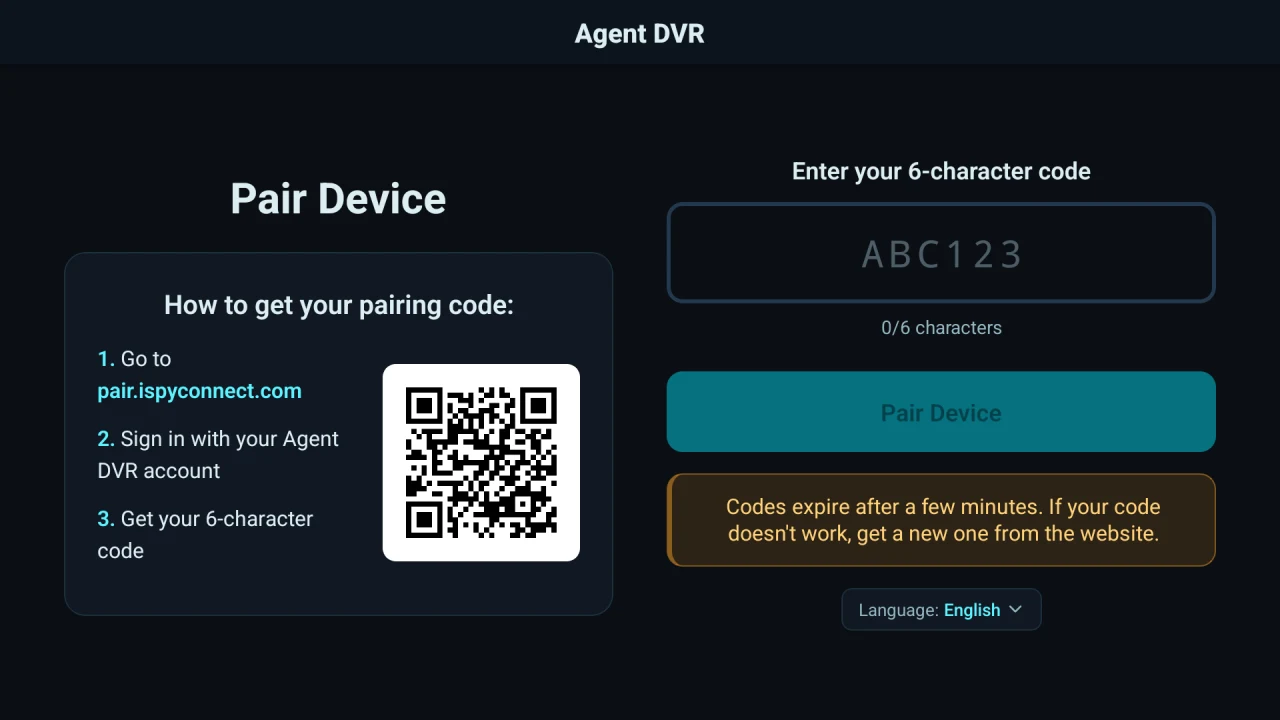
- Open the app on the TV. It shows the pairing screen.
- On your phone or computer, go to pair.ispyconnect.com, or scan the QR code on the TV with your phone's camera.
- Sign in with your Agent DVR account. You are shown a 6-character code.
- On the TV, press OK on the code box to open the on-screen keyboard and enter the code. The TV pairs as soon as you enter the sixth character.
Codes expire after a few minutes and can only be used once. If a code doesn't work, get a new one from the website.
Once paired, the TV lists your servers. Select one and press OK to connect.
Using the Remote
| Button | Action |
|---|---|
| Left / Right | Select the previous or next camera. While a camera is maximised, switch to the previous or next camera full screen. |
| Up / Down | Switch to the previous or next view. Views with no cameras are skipped. |
| OK | Maximise the selected camera. Press again to go back to the grid. |
| Back | Go back to the grid from a maximised camera, otherwise open the menu. In the menu, Back goes up a level, and from the first page of the menu it returns to the server list. |
The menu has the following options:
- The selected camera: Switch it on or off, or start and stop recording. Not shown to users with read-only access.
- Views: Jump straight to one of your views.
- Cycle views: Step through your views automatically every 10 seconds, 30 seconds, 1 minute or 5 minutes. Cycling pauses while a camera is maximised.
- Audio: Switch sound on or off.
- Change Server: Return to the server list.
- Close: Close the menu.
Views and Cycle views appear when the server has more than one view with cameras in it.
Removing a TV or Resetting Access
To sign out on the TV itself, open Settings from the server list and choose Logout. The TV goes back to the pairing screen.
If you no longer have the TV, for example it was sold, returned or is in a shared space, you can reset access from anywhere: change your password in Account Settings.
If you sign in with Google, Apple or Microsoft, you can still set a password in Account Settings to do this. You are not asked for a current password, and you carry on signing in the same way afterwards.